I’m working on a strategy game where the camera is often high above the terrain and dynamic weather is an important part of the game, so clouds need to look good. Mountainous terrain means that the clouds will often intersect with the terrain and other objects on the ground so I wanted to make sure the clouds were rendered in a way that makes them feel like a part of the gameplay area, rather than a background detail.
This is implemented in my custom game engine using Vulkan, but the techniques are possible in any game engine that uses compute shaders.
Raymarching
Most recent cloud rendering techniques use raymarching, so that’s where I started. The clouds are rendered at 1/4 of the main render target resolution. In a compute shader I march a ray for each pixel, first intersecting with a bounding box that contains the clouds. The dynamic, simulated clouds are only present in a layer above the gameplay area.
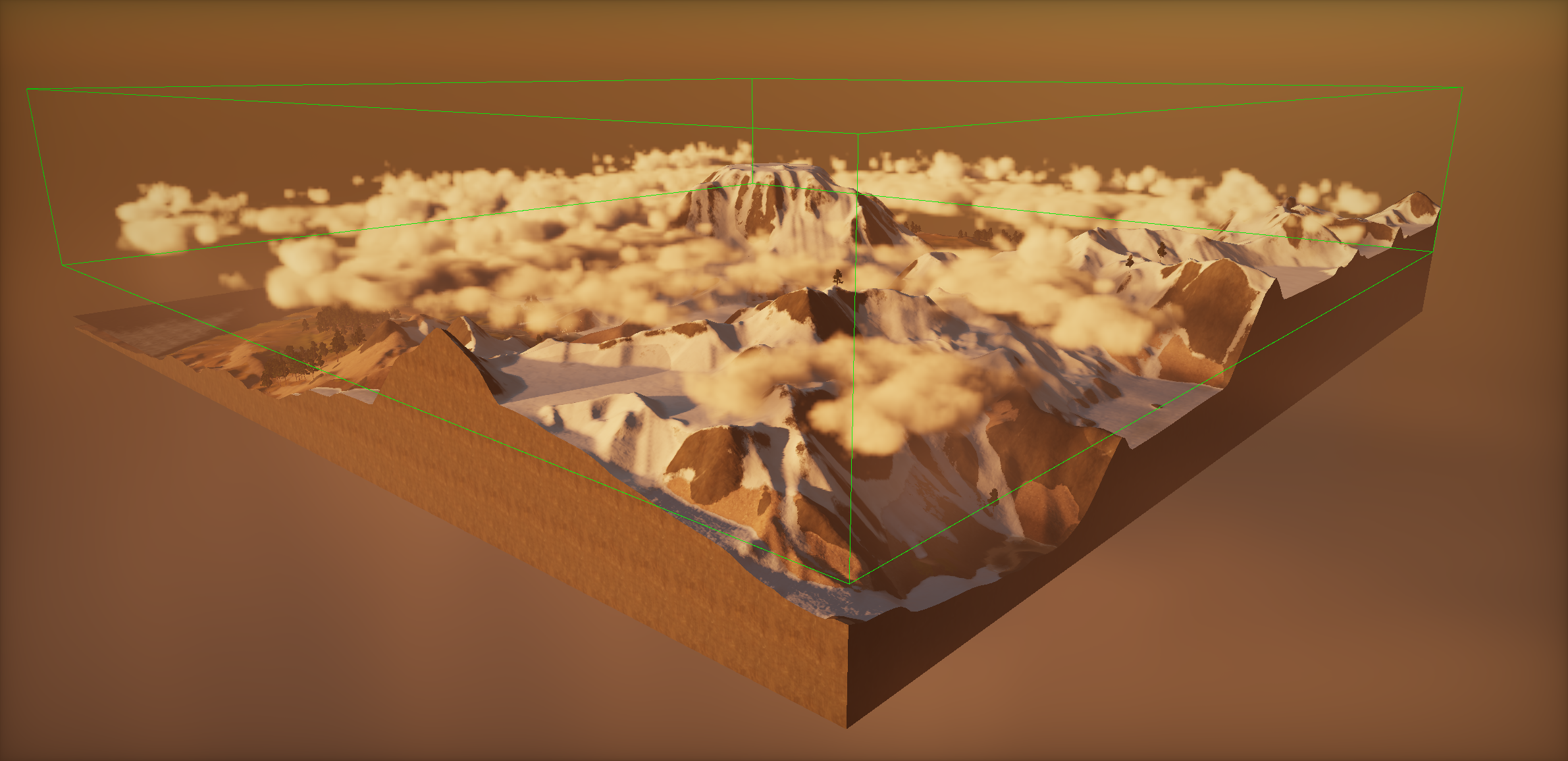
Dynamic Cloud Bounds
The ray marches through the scene until it reaches the end of the cloud bounds or a solid object in the scene. I downsample the scene depth target, storing both the closest and farthest depth sample within a 4x4 block. This is important later for compositing the clouds back in to the scene.
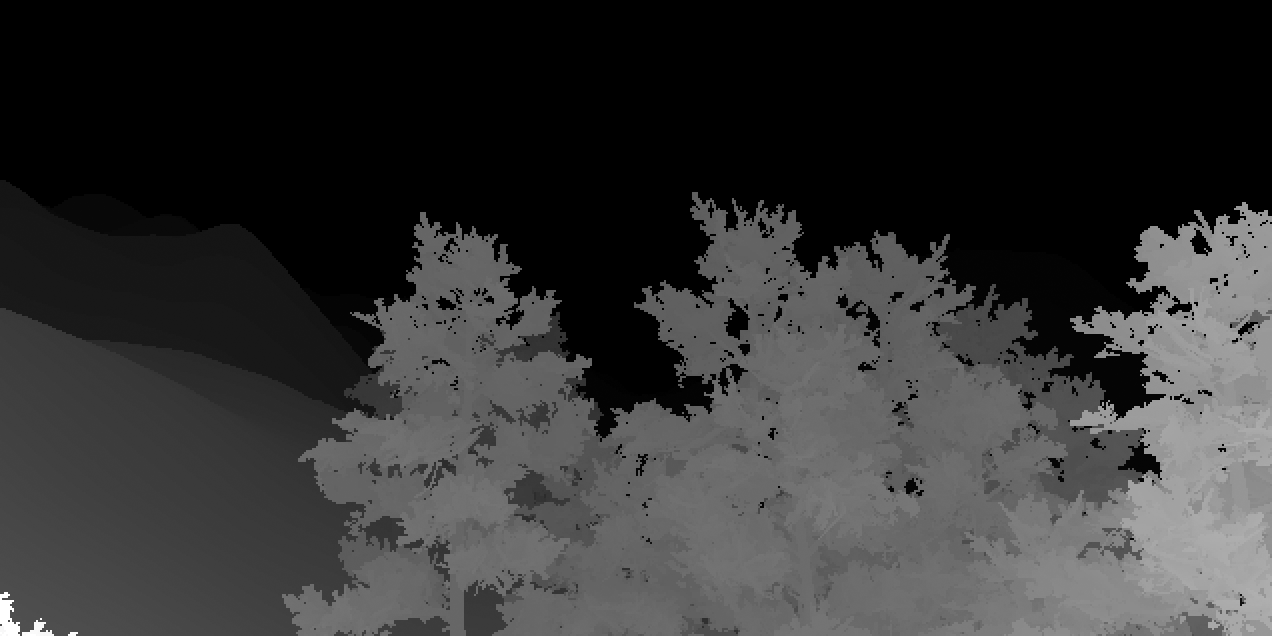
Nearest depth
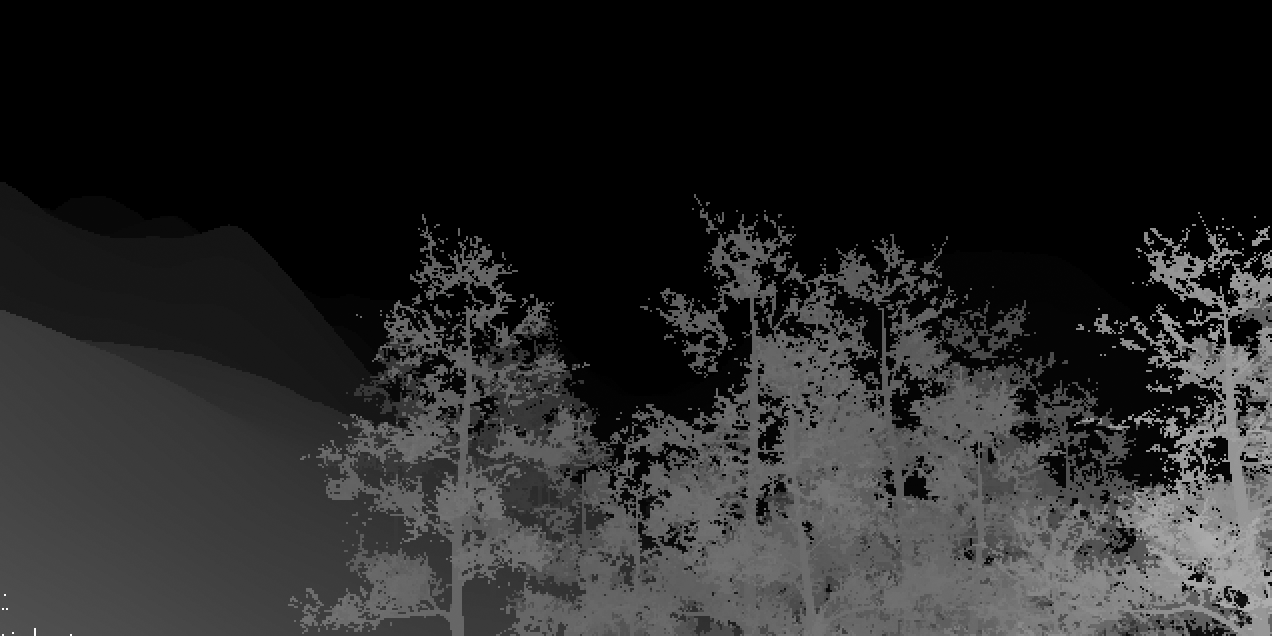
Farthest depth
If the ray passes the closest depth in the 4x4 block of pixels in the depth target, I store the output color into a “near” cloud render target. I then keep marching until the ray reaches the end of the cloud bounding box or the farthest scene depth is reached. The output is then stored in a “far” cloud render target. The biggest difference in this view is the edges of the trees.
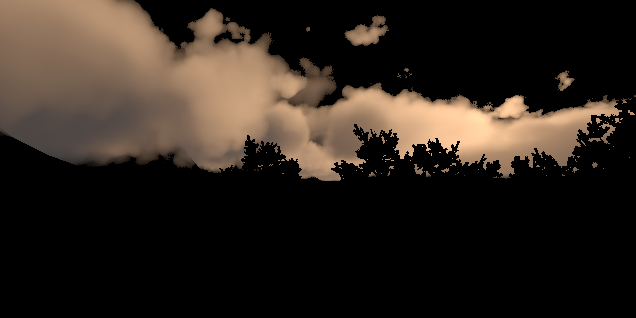
Cloud color near depth
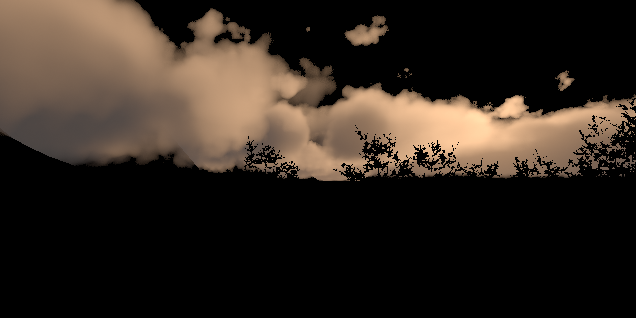
Cloud color far depth
Compositing
The reason for saving a separate near and far output is to reduce artifacts when upsampling the clouds to composite with the rest of the scene.
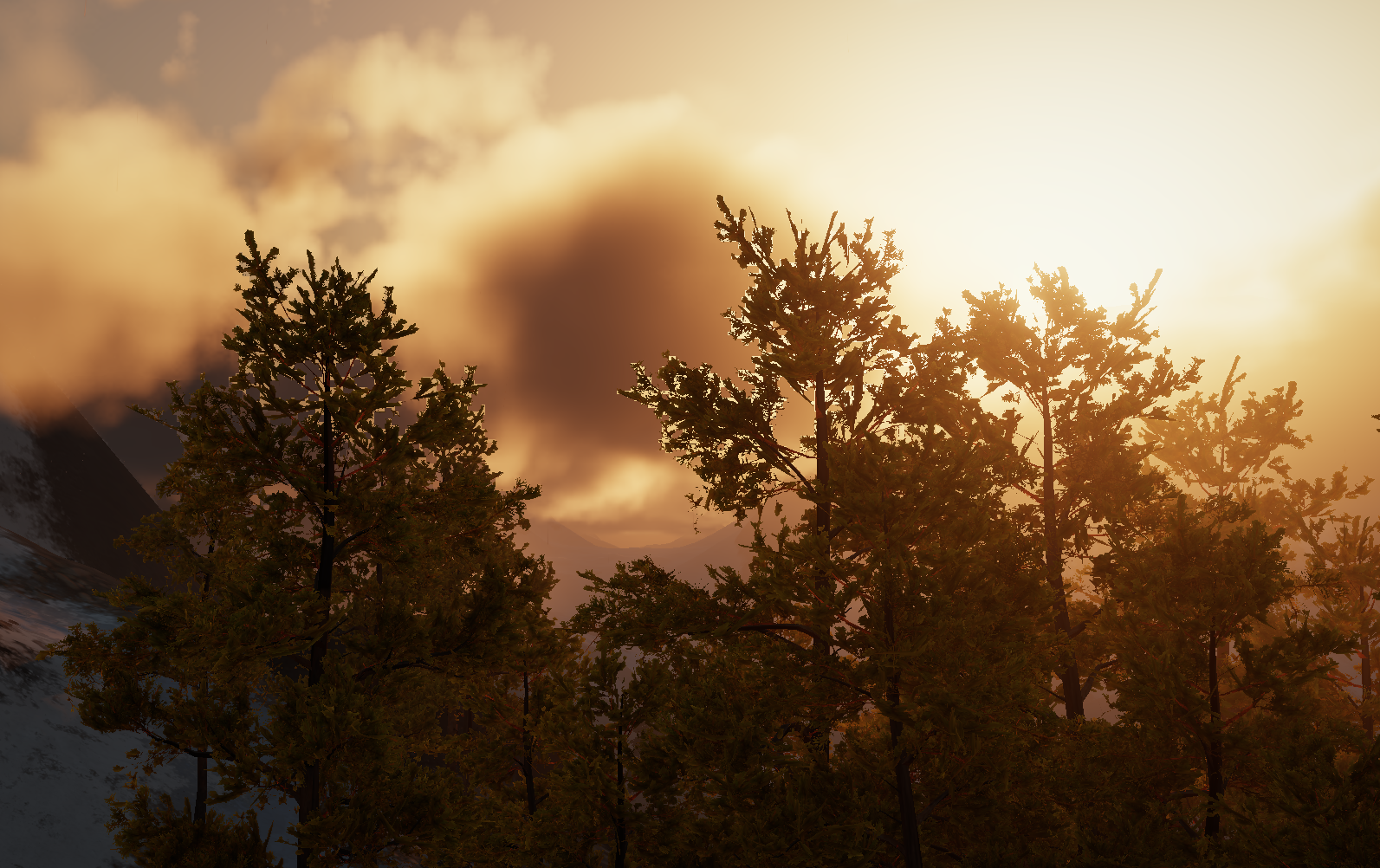
Using near depth only
If only the nearest depth sample is used the scene geometry coverage will be over estimated, resulting in halos around foreground objects where there is missing cloud data.
Using far depth only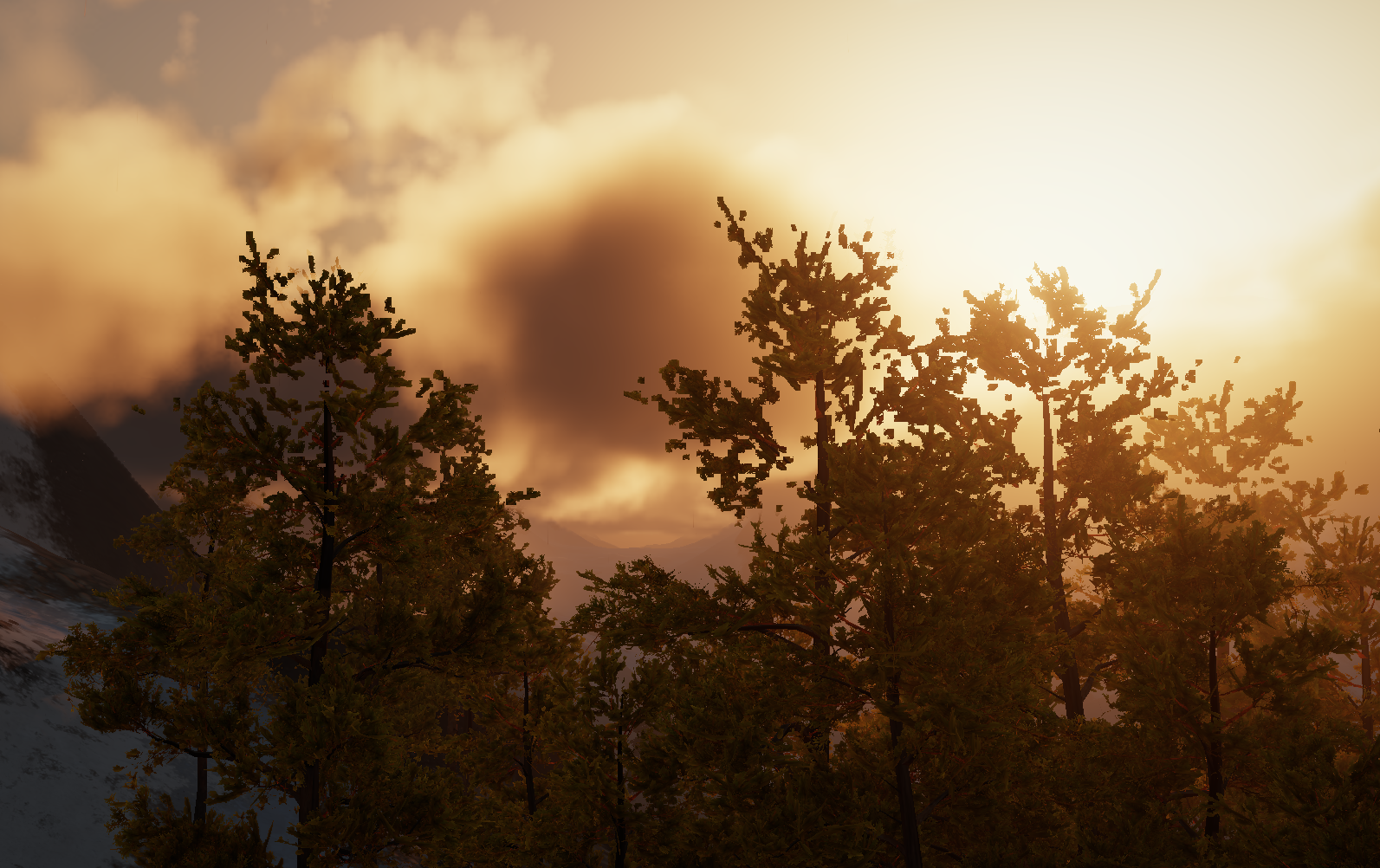
This can be helped by choosing the low resolution pixel that has a depth that best matches the high resolution pixel. This works pretty well, but there are still artifacts, especially where there is high frequency noise in the depth buffer. A common source of this is alpha tested leaves, which I will have a lot of in my game.
To take this one step further, I use depth weighted upsampling for both the near and far cloud outputs and blend between them based on whether the high resolution pixel depth is closer to the near or far downsampled depth. There is a bit of memory overhead with storing the extra cloud render target, but not very much as it is 1/4 resolution. When rendering clouds into cubemaps I only use the far scene depth as the resolution is low enough that the artifacts are not visible.
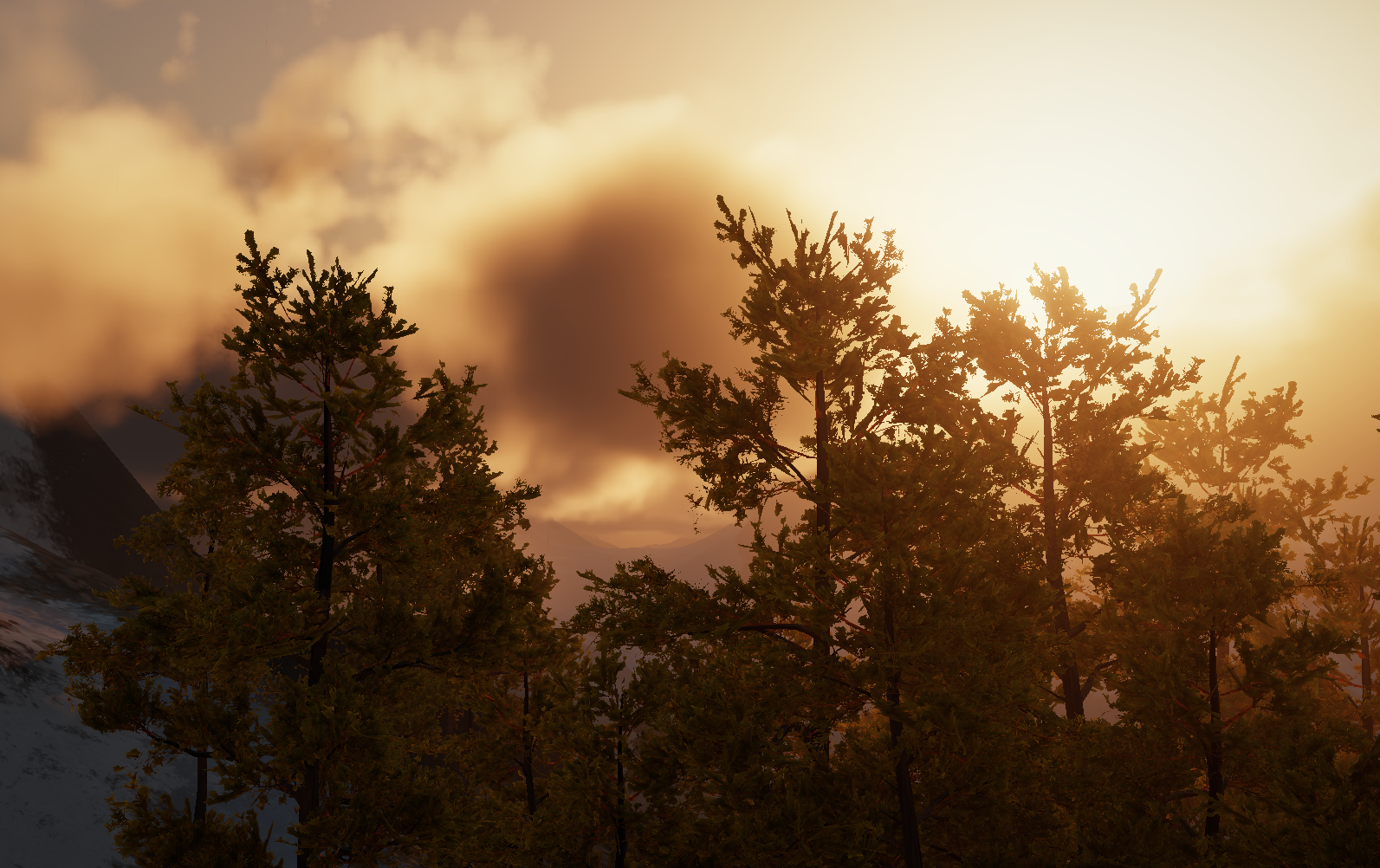
Blending between near and far depth
Cloud shadows on world
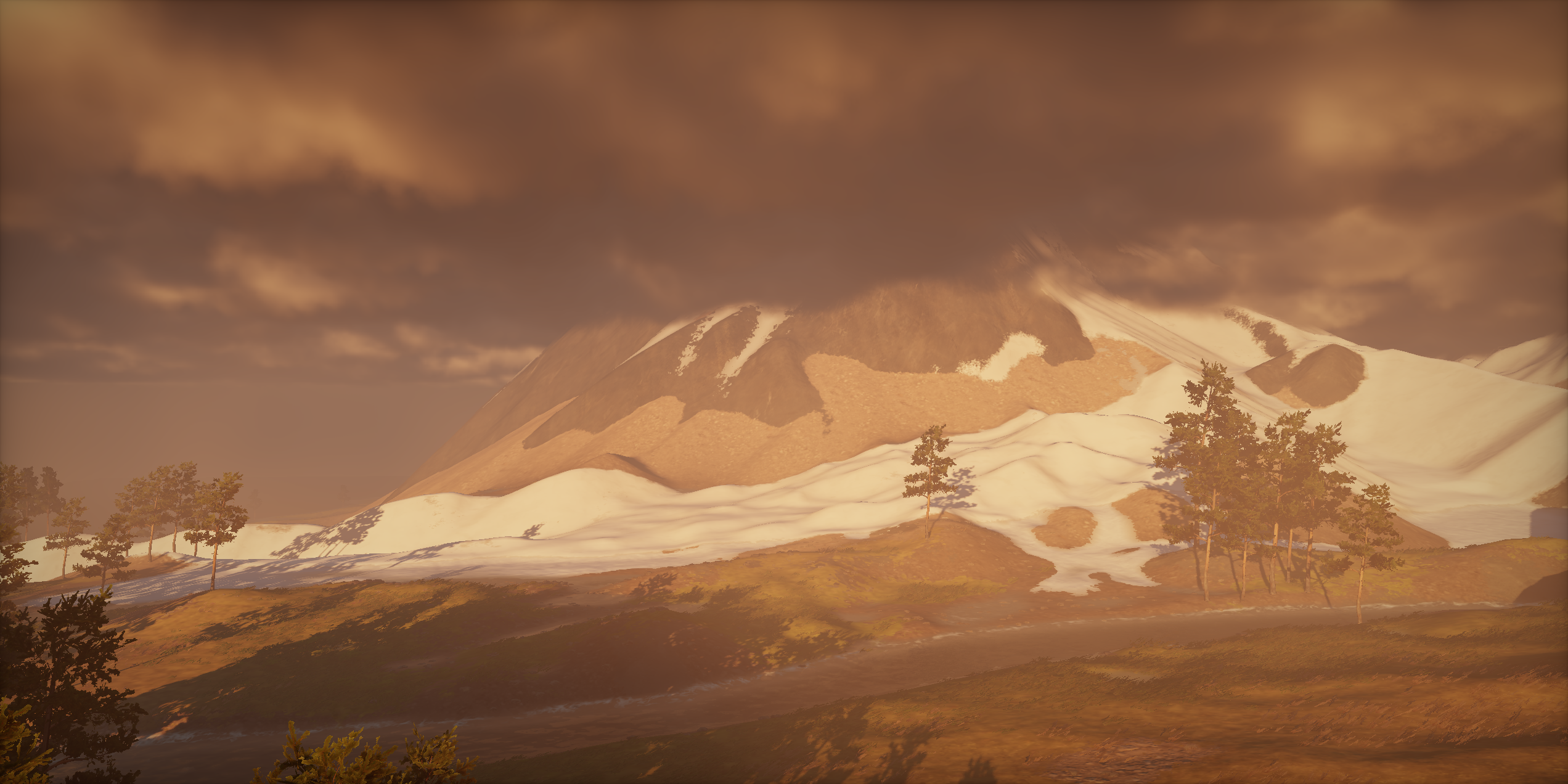
Cloud shadow on world disabled
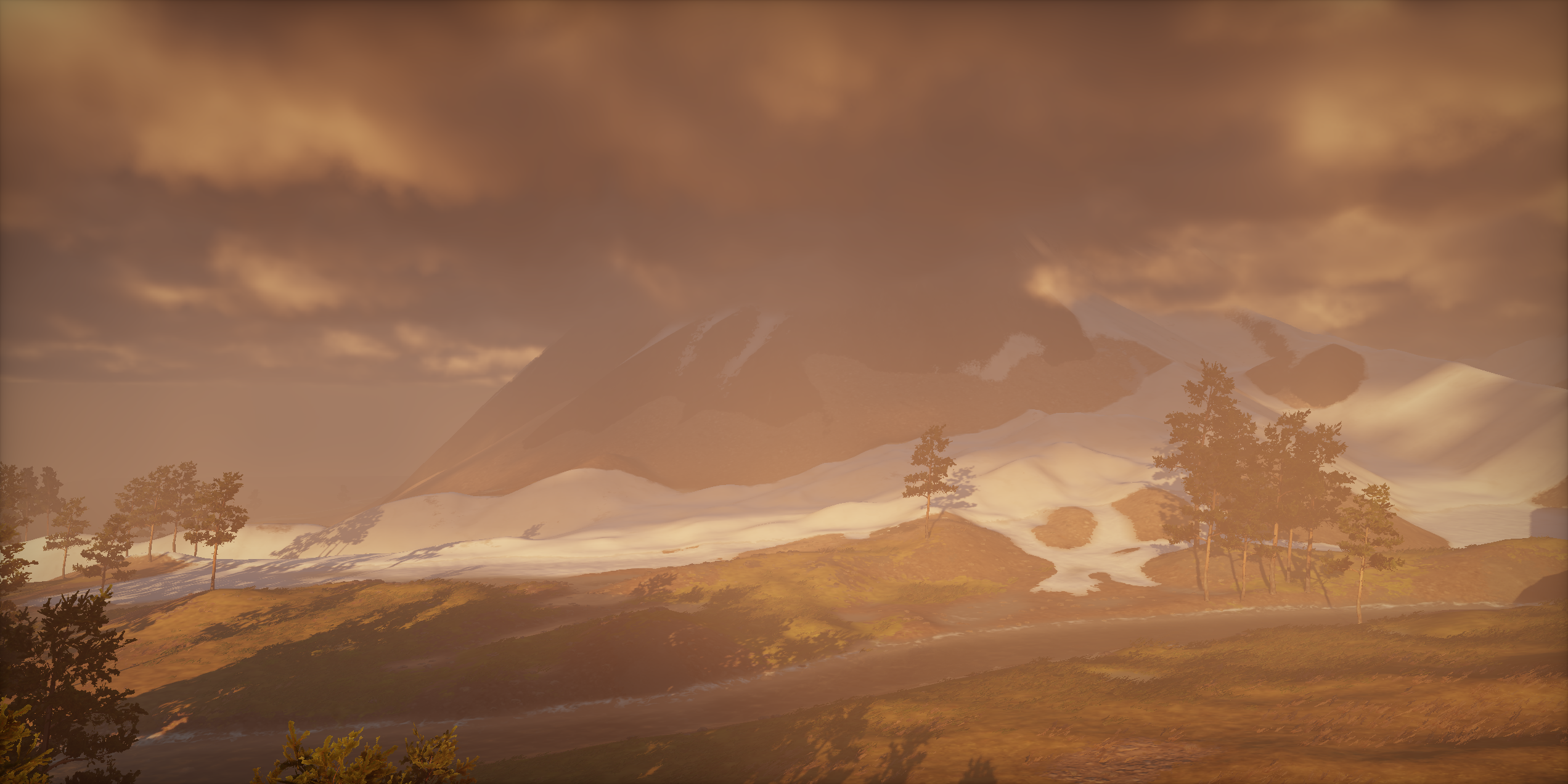
Cloud shadow on world enabled
As the clouds aren’t solid rendering a classic shadowmap from the sun’s perspective won’t work. The way I solved this was to create a low resolution 3D grid over the level where I wanted to have cloud shadows. At each cell I raymarch towards the light to calculate a shadow value from the cloud density. As the clouds are fairly slow moving, I only update a fraction of the cells every frame. This 3D texture can then be sampled when calculating lighting.

Cloud shadow volume, left is near ground, right is near cloud tops
World shadows on clouds
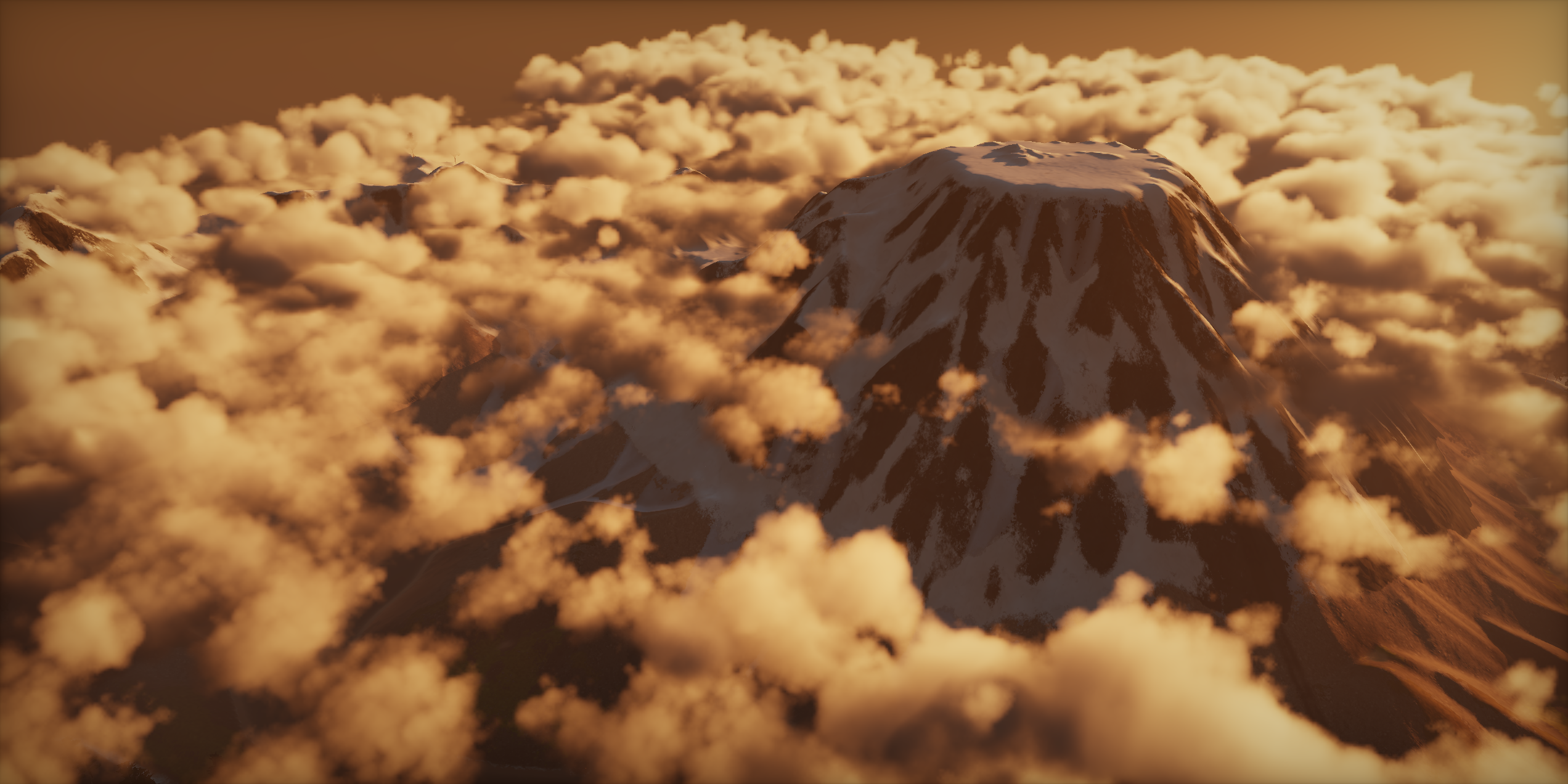
World shadow on clouds disabled

World shadow on clouds enabled
The world objects shadows are calculated with a fairly standard cascaded shadow map. Using this directly on the clouds looks a bit odd though, with very sharp shadows. I downsample and blur the shadowmap and use exponential shadow maps on the clouds, as well as for particles and translucent objects like leaves.
Volumetric fog
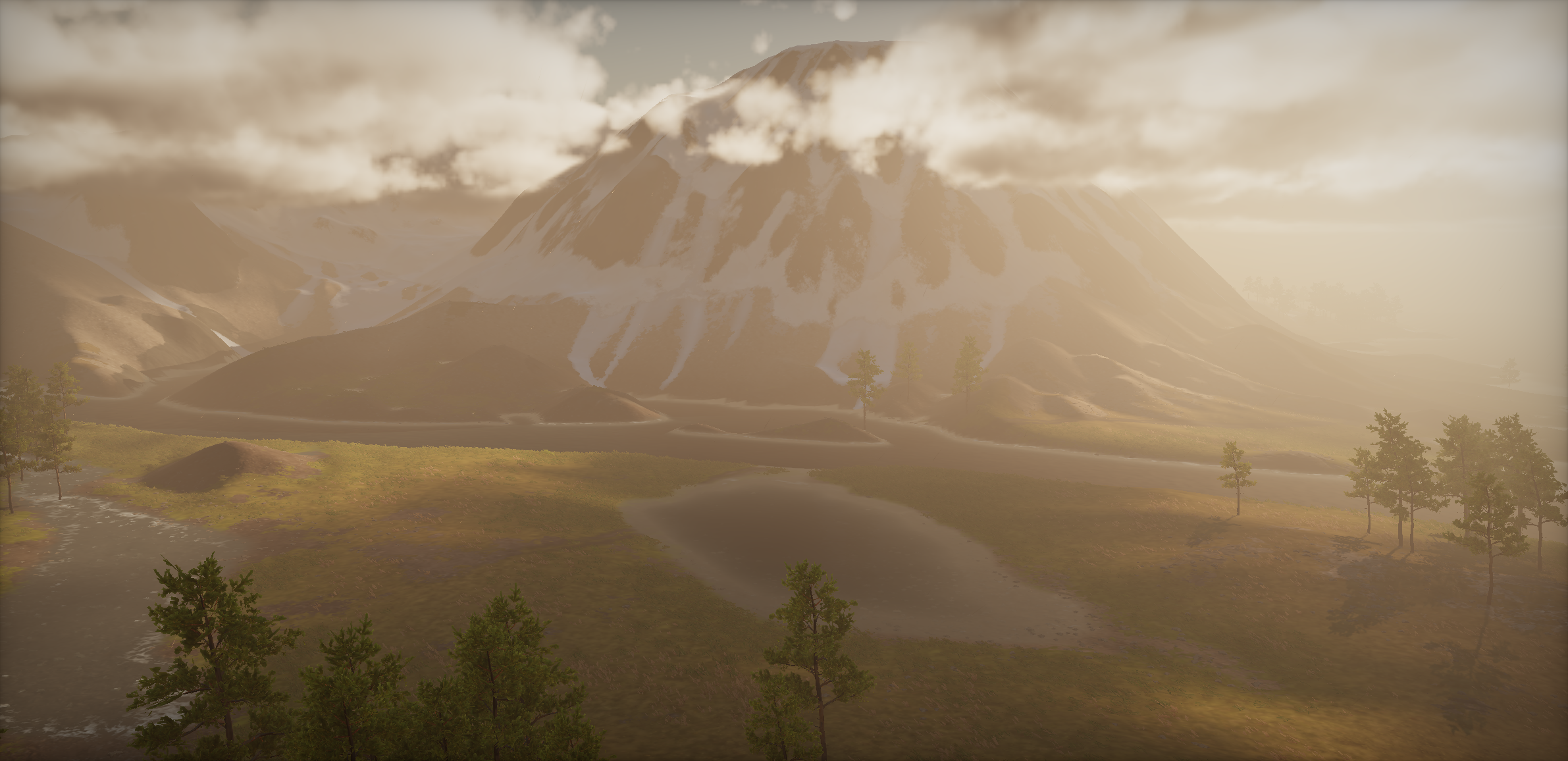
Volumetric fog without scene and cloud shadows
Volumetric fog with scene and cloud shadows
I use the exponential shadow map from the scene geometry and the cloud shadow volume when calculating the lighting. Light shafts appear automatically where there are shadows.
When rendering clouds I calculate a transmission weighted depth value. This gives a position that ends up near the point where the cloud is thickest. This position is used to sample the scattering texture and apply fog to clouds.
Transparent object blending
Transparent blending off

Transparent blending on
I have transparent objects that can appear in front, behind, and inside the clouds. Trying to sort these into passes before and after the cloud rendering would be difficult and result in objects popping in and out. Instead, I render another camera aligned 3D texture for cloud opacity from the camera’s perspective. The accumulated cloud opacity is stored at each voxel in the texture. Transparent objects are rendered after the clouds. They sample this cloud opacity texture to fade themselves out when they are behind clouds.

Cloud opacity volume slices, left is near the camera and right is far away